
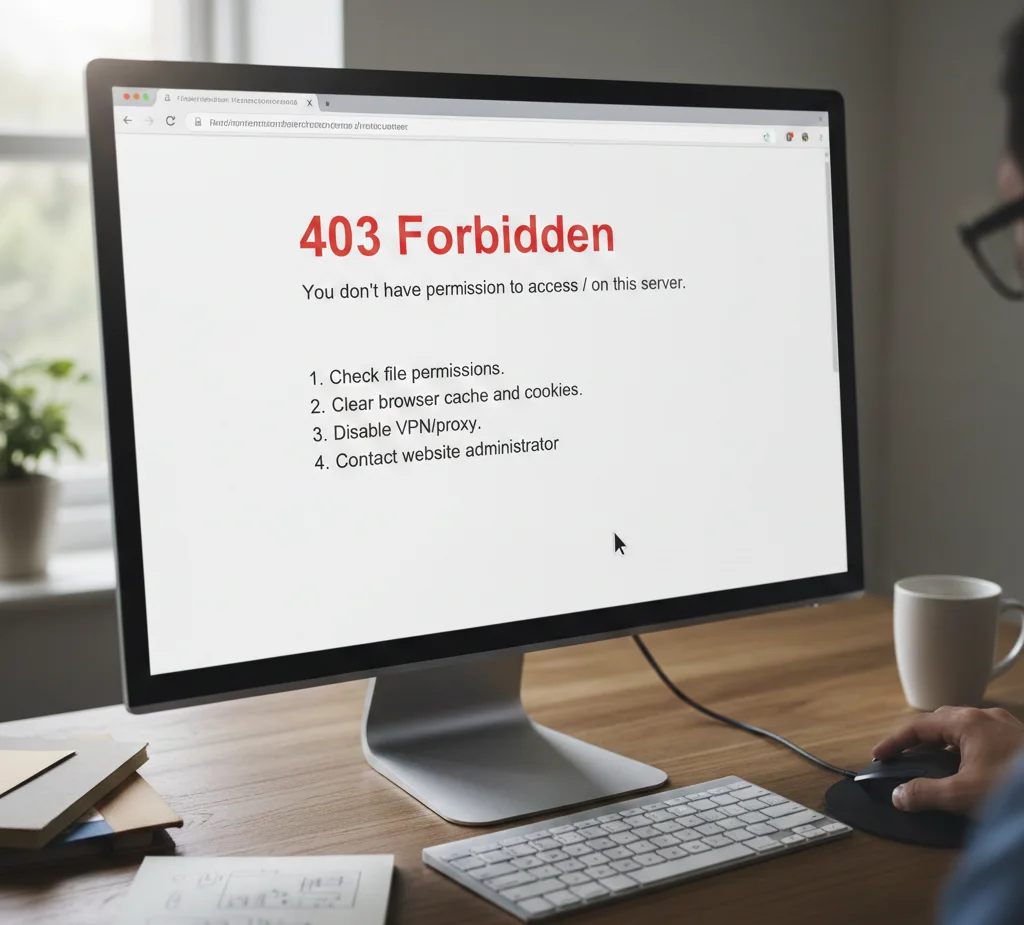
A 403 forbidden error means the server understands your request but denies access to the requested resource because you don’t have permission to access it. Unlike connection issues, the server is working, it’s simply blocking you from viewing the page.
This HTTP status code is one of the most frustrating access issues website owners and visitors encounter. When you’re seeing a 403 forbidden error, it typically indicates permission problems, configuration mistakes, or security restrictions that prevent normal browsing.
What Does the 403 Forbidden Error Mean?
The 403 forbidden error is an HTTP status code that appears when a server refuses to grant access to a specific webpage or resource. The error indicates that while the server received and understood your request, it has explicitly decided to deny access.
Unlike a 404 error (page not found) or 401 unauthorized error (authentication required), the 403 error means the server knows exactly what you’re requesting, it just won’t let you see it. Common causes of 403 errors include incorrect file permissions, misconfigured .htaccess files, plugin conflicts on WordPress sites, or security measures blocking your IP address.
Real-world insight: Many beginners confuse 403 with 401 errors. The key difference: 401 asks for credentials, while 403 says “even with credentials, you’re not allowed to access this.” Think of it as the difference between a locked door (401) and a “No Trespassing” sign (403).
Common Causes of 403 Forbidden Errors
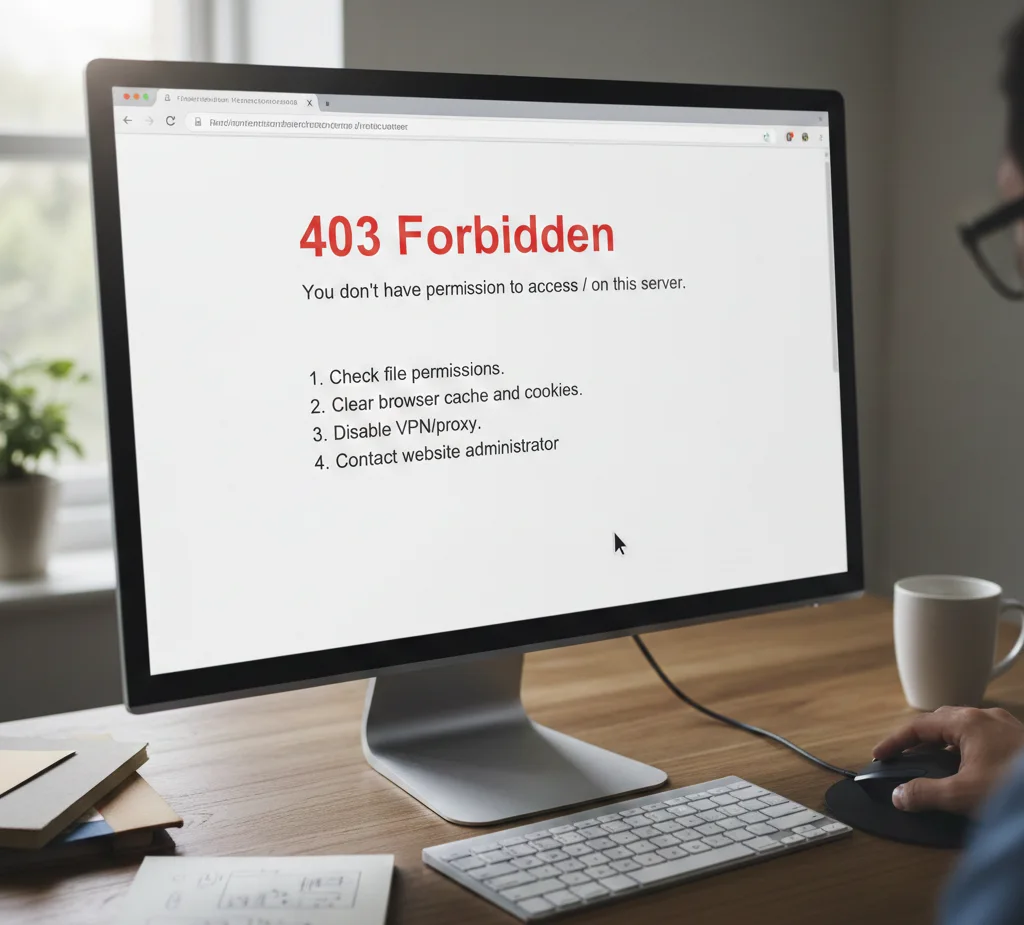
Incorrect File or Directory Permissions
File permissions are numeric codes that determine who can read, write, or execute files on a web server. When permissions are too restrictive, the server may block access to legitimate visitors.
Proper permission settings:
- Directories should typically be set to 755
- Files should generally be set to 644
- The wp-config.php file (WordPress) should be 440 or 400
A common mistake is setting everything to 777 for “troubleshooting,” which creates serious security vulnerabilities. If you fix file ownership incorrectly, you might solve the access problem but expose your site to attacks.
Faulty .htaccess File Configuration
The .htaccess file controls server behavior and can trigger a 403 error when misconfigured. This file contains directives that can block access, redirect URLs, or restrict access to certain directories.
Common .htaccess problems that cause a 403 forbidden error:
- Deny from all directives without proper Allow rules
- Incorrect IP blocking syntax
- Conflicting rewrite rules
- Missing index file declarations
To test if .htaccess is causing the error, temporarily rename it to .htaccess_old and see if the error disappears. This simple diagnostic can save hours of troubleshooting.
WordPress Plugin or Theme Conflicts
WordPress sites frequently display a 403 forbidden error message due to security plugins overzealously blocking legitimate traffic. Plugins like Wordfence, iThemes Security, or All In One WP Security can trigger a 403 when their settings are too aggressive.
Theme files with hardcoded restrictions or outdated security rules can also cause the 403 forbidden error on your site. When dealing with a 403 on WordPress, plugin conflicts are often the culprit—especially after recent updates.
IP Blocking and Geographic Restrictions
Server administrators or security plugins may block access based on IP addresses or geographic location. This is particularly relevant for users in the USA, UK, and Australia accessing international websites with regional restrictions.
If the server denies access because of your location, you might encounter a 403 status code even when the website works fine for others. Some content delivery networks (CDNs) or hosting providers implement geo-blocking that can restrict access to certain countries.
Index File Missing or Misconfigured
When you try to access a directory without a default index file (like index.html, index.php, or default.htm), the server may block access and return a 403 forbidden error instead of showing the directory contents.
Expert warning: Some servers show directory listings when index files are missing, creating security risks by exposing your file structure. A 403 in this case is actually protective, but you need to add the proper index file to fix the issue.
How to Fix a 403 Forbidden Error: Step-by-Step Solutions
Fix 1: Check and Correct File Permissions
Connect to your website via FTP or your hosting control panel’s file manager. Right-click the problematic file or folder and check current permissions.
To fix file ownership and permissions:
- Set all folders to 755 (owner can read/write/execute, others can read/execute)
- Set all files to 644 (owner can read/write, others can only read)
- Set wp-config.php to 440 for enhanced security
- Apply changes and test your site
For hosting platforms like cPanel (common in USA hosting), SiteGround (popular in UK), or VentraIP (Australia), you’ll find permission controls in the File Manager under “Change Permissions” or “CHMOD.”
Common mistake to avoid: Never set everything to 777. This grants full access to everyone, creating serious security vulnerabilities that attackers can exploit.
Fix 2: Repair or Reset Your .htaccess File
The .htaccess file can cause a 403 forbidden error when it contains incorrect directives. Here’s how to fix the problem:
Quick diagnostic method:
- Access your site via FTP or File Manager
- Locate the .htaccess file in your root directory
- Download a backup copy
- Rename it to .htaccess_old
- Try to access your site
If the error disappears, your .htaccess was causing the issue. For WordPress sites, you can generate a fresh .htaccess by going to Settings > Permalinks and clicking “Save Changes.”
For custom .htaccess rules: Review any deny/allow directives carefully. A single misplaced line can block all traffic.
Fix 3: Deactivate WordPress Plugins and Themes
Security plugins are frequent causes of 403 errors on WordPress. When you’re getting 403 forbidden access issues after installing or updating a plugin, systematic deactivation helps identify the culprit.
Troubleshooting process:
- Access your site via FTP or hosting file manager
- Navigate to wp-content/plugins
- Rename the plugins folder to plugins_old
- See if the error clears
- Rename it back and deactivate plugins one by one through your dashboard
For theme issues, switch to a default WordPress theme (Twenty Twenty-Four) temporarily to see if the error persists.
Pro tip: Keep detailed notes of which plugin combinations trigger a 403. This helps when you encounter a 403 error in the future.
Fix 4: Clear Browser Cache and Cookies
Sometimes you’re seeing a 403 forbidden error that’s actually stored in your browser cache. The website may have already fixed the problem, but your browser keeps showing the old cached error page.
To restore access through cache clearing:
- Chrome/Edge: Press Ctrl+Shift+Delete (Cmd+Shift+Delete on Mac)
- Firefox: Press Ctrl+Shift+Delete
- Safari: Press Cmd+Option+E
- Select “All time” and clear both cache and cookies
Try accessing the site in incognito/private mode. If it works there but not in normal browsing, cached data is causing the issue.
Fix 5: Contact Your Hosting Provider
If you’ve tried the above methods and still encounter a 403 status code, your hosting provider may have server-level restrictions in place. This is particularly common with shared hosting in USA, UK, and Australia markets.
Server-level issues that can cause a 403:
- ModSecurity rules blocking legitimate requests
- IP reputation blocks
- Account suspension for billing or terms violations
- Resource limit enforcement
- DDoS protection measures
Hosting support can check server logs to identify what’s causing the 403 forbidden message and whitelist your access if appropriate.
Understanding HTTP Error 403 vs Other Status Codes
The HTTP 403 error differs from similar codes in important ways. A 401 unauthorized error requires you to provide credentials, while 403 says credentials won’t help. A 404 means the page doesn’t exist, whereas 403 confirms it exists but you can’t access it.
Quick reference:
- 403 Forbidden: Access denied despite valid request
- 401 Unauthorized: Authentication required
- 404 Not Found: Resource doesn’t exist
- 500 Internal Server Error: Server-side problem
Understanding these distinctions helps you fix the issue faster because you’ll know whether to focus on permissions (403), authentication (401), or broken links (404).
Does 403 Forbidden Mean I’m Banned?
Not necessarily. When you see a 403, it usually indicates a technical configuration issue rather than a deliberate ban. However, persistent 403 errors from the same website might indicate your IP has been blocked due to suspicious activity, too many failed login attempts, or automated bot detection.
Legitimate reasons you might get a 403:
- Your IP was previously used by someone violating terms
- You’re using a VPN that’s been flagged
- You triggered rate limiting by refreshing too quickly
- Geographic restrictions apply to your location
If you believe you’ve been wrongly blocked, contact the website administrator with details about when you’re seeing a 403 forbidden error and what you were trying to access.
Preventing Future 403 Forbidden Errors
Best practices to avoid access issues:
- Regularly back up your .htaccess file before making changes
- Test security plugin settings in staging before production
- Monitor file permissions after updates or migrations
- Keep WordPress, themes, and plugins updated
- Use quality hosting with good support (especially critical for small businesses—learn more about affordable web design and development options)
For businesses serious about maintaining website accessibility, working with an SEO expert can help identify and prevent errors that damage search rankings and user experience.
When to Seek Professional Help
If the 403 forbidden error on your site persists after trying these fixes, or if many 403 forbidden errors appear across different pages, professional intervention may be necessary. Complex server configurations, custom security rules, or deeper permission issues might require developer expertise.
Regular website performance monitoring helps catch these errors before they significantly impact traffic. A 403 error may seem minor, but when it blocks access to important pages, it directly affects conversions and search rankings.
Final Thoughts
The 403 forbidden error is often straightforward to fix once you understand what’s causing it. Start with simple solutions like clearing cache and checking .htaccess, then move to more complex fixes like file permissions and plugin conflicts.
Remember: the error means the server understands your request but chooses to deny access for specific reasons. By methodically working through permission settings, configuration files, and security measures, you can restore access and prevent the error from recurring.