
Want to add meta tags in WordPress without a plugin? You’re in the right place. Most WordPress tutorials push you straight toward an SEO plugin like Yoast or Rank Math but you don’t always need one. With a few lines of HTML code and some basic edits to your functions.php file or header.php file, you can manually add meta tags to your WordPress site and get full control over your on-page SEO without installing anything extra.
This guide covers all the practical ways to add meta tags to WordPress without plugins. From beginner-friendly methods to advanced custom SEO setups using conditional logic, custom fields, and the wp_head hook. By the end, you’ll be able to add a meta title, meta description, and meta keyword tag to every post or page on your WordPress website without relying on a single SEO plugin.
Summary
Adding meta tags in WordPress without a plugin is entirely practical, and for the right use case whether that’s a lean developer setup, a client site without plugin dependencies, or a WordPress website where performance and full control matter, it’s often the smarter approach.
The key takeaways: the meta keyword tag carries no SEO value with Google or Bing in 2026, the meta title and meta description are the tags that actually influence how your WordPress site appears in search engine results and how often users click through, and the functions.php method with wp_head and conditional logic is the most scalable and SEO-correct implementation without using plugins.
Use the custom meta box from Method 4 if you’re building sites for clients or need a clean backend UI. Use WPCode (Method 3) if you don’t want to touch theme files directly. Use Method 1 for a clean, developer-grade setup on your own WordPress site.
Whatever method you choose, verify your output in the page source, write your meta descriptions for humans first, keep your SEO titles under 60 characters, and never run manual meta tag code alongside an active SEO plugin outputting the same tags.
What Are Meta Tags and Why Do They Matter for WordPress SEO?
Meta tags are pieces of HTML code placed inside the <head> section of your web page. They don’t appear within the content users see, but they help search engines understand your content, which directly affects how your WordPress site appears in search engine results.
The most important meta tags for WordPress SEO are:
Meta Title (SEO Title): This appears in search engine results as the clickable blue headline. It’s the most important on-page SEO element because it affects both rankings and click-through rate. A well-optimized SEO title with your target keyword near the front can meaningfully improve how often users choose your result over a competitor’s.
Meta Description: This is the short summary that appears in search engine results below your title. Google doesn’t use it as a direct ranking factor, but a compelling description and keywords combination improves click-through rates, which sends positive engagement signals back to Google.
Meta Keyword Tag: A legacy HTML tag that once listed target keywords for a page. Google officially stopped using the keywords meta tag as a ranking signal in 2009. It has no SEO value with major search engines today but this guide covers it because some clients still request it and some internal search tools still read it.
Understanding what each tag actually does is the foundation of smart, honest WordPress SEO. Adding keywords in WordPress without understanding this distinction is one of the most common beginner mistakes.
The Truth About the Meta Keyword Tag in 2026
Before you spend time adding keywords in WordPress without plugins, you need to know this: Google does not use the meta keyword tag in web ranking. This is confirmed directly by Google Search Central:
“Google doesn’t use the keywords meta tag in web search ranking.”
Bing has made the same position clear, and has even stated that keyword stuffing in the meta keyword tag can be treated as a spam signal. So adding meta keywords in every post on your WordPress website will not improve your SEO rankings and overdoing it could hurt your credibility with certain crawlers.
What this means for you: Focus your optimization effort on the meta title and meta description. These are the meta tags in WordPress without which your on-page SEO is genuinely incomplete. The keyword tag is optional and low-priority unless you have a specific non-Google reason to include it.
Meta Tags That Actually Impact Your SEO Rankings
Here’s a clear reference table before diving into the how-to:
| Meta Tag | Used by Google? | Affects Rankings? | Affects Click-Through? |
|---|---|---|---|
| Meta Keywords Tag | No | No | No |
| Meta Title / SEO Title | Yes | Indirectly (via CTR) | Yes — strongly |
| Meta Description | Yes (display only) | No (directly) | Yes — strongly |
| Robots Meta Tag | Yes | Yes (controls indexing) | N/A |
| Open Graph Tags | No (social only) | No directly | Yes (social sharing) |
Now let’s get into the actual methods to add meta tags to your WordPress website without a plugin.
What to Know Before You Manually Add Meta Tags in WordPress
Adding meta tags to WordPress without plugins means editing PHP theme files. Before you touch anything, follow these ground rules to protect your site.
Always Use a Child Theme
Any changes made directly to a parent theme’s header.php file or functions.php file will be erased the next time that theme updates. Use a child theme so your custom SEO code survives updates. If you don’t have one yet, create it before doing anything else, this is not optional.
Back Up Your Site First
A single PHP syntax error in your functions.php file can produce a fatal error that locks you out of your WordPress dashboard. Back up your full site, files and database before making any manual changes.
Use functions.php Over header.php for Dynamic Output
Editing your header.php file adds static meta tags that are the same on every page. Using the wp_head hook in your theme's functions.php file lets you generate different meta tags based on whether the user is on a post or page, homepage, category archive, or custom post type, which is what real WordPress SEO requires.
Never Mix Manual and Plugin-Based Meta Tags
If you manually add meta tags to your WordPress site and you also have an active SEO plugin like Yoast or Rank Math outputting its own tags, you’ll end up with duplicate meta tags in your <head>. This confuses crawlers and creates inconsistent SEO data. Choose one approach and remove the other.
Method 1: Add Meta Tags in WordPress Using functions.php (Best for Dynamic Sites)
This is the most recommended way to add meta tags in WordPress without a plugin for any content-heavy WordPress site. It uses the wp_head hook in your theme's functions.php file to dynamically generate the right meta tags for every post or page based on conditional logic.
Step 1: Open Your functions.php File
In your WordPress dashboard, go to Appearance → Theme File Editor and select your child theme’s functions.php file from the right-hand file list. Alternatively, access it via FTP at /wp-content/themes/your-child-theme/functions.php.
Step 2: Add the Dynamic Meta Tag Function
Paste this code at the bottom of your functions.php file:
php
function custom_meta_tags_output() {
    global $post;

    // --- SEO TITLE ---
    if ( is_singular() ) {
        $meta_title = get_the_title( $post->ID );
    } elseif ( is_home() || is_front_page() ) {
        $meta_title = get_bloginfo( 'name' ) . ' | ' . get_bloginfo( 'description' );
    } elseif ( is_category() ) {
        $meta_title = single_cat_title( '', false ) . ' | ' . get_bloginfo( 'name' );
    } elseif ( is_tag() ) {
        $meta_title = single_tag_title( '', false ) . ' | ' . get_bloginfo( 'name' );
    } elseif ( is_archive() ) {
        $meta_title = get_the_archive_title() . ' | ' . get_bloginfo( 'name' );
    } else {
        $meta_title = get_bloginfo( 'name' );
    }

    // --- META DESCRIPTION ---
    if ( is_singular() && has_excerpt( $post->ID ) ) {
        $meta_description = get_the_excerpt( $post->ID );
    } elseif ( is_singular() ) {
        $meta_description = wp_trim_words( get_the_content(), 25, '...' );
    } elseif ( is_home() || is_front_page() ) {
        $meta_description = get_bloginfo( 'description' );
    } else {
        $meta_description = get_bloginfo( 'description' );
    }

    // --- META KEYWORD TAG (via custom fields) ---
    $meta_keywords = '';
    if ( is_singular() ) {
        $meta_keywords = get_post_meta( $post->ID, 'meta_keywords', true );
    }

    // --- OUTPUT ---
    echo '<meta name="title" content="' . esc_attr( $meta_title ) . '">' . "\n";
    echo '<meta name="description" content="' . esc_attr( $meta_description ) . '">' . "\n";
    if ( ! empty( $meta_keywords ) ) {
        echo '<meta name="keywords" content="' . esc_attr( $meta_keywords ) . '">' . "\n";
    }
}
add_action( 'wp_head', 'custom_meta_tags_output', 1 );
Step 3: Understanding the Conditional Logic
This function uses WordPress conditional tags to use conditional logic and serve the correct meta content for each type of page on your site:
is_singular()— targets individual posts, pages, and custom post typesis_home()— targets the blog post listing pageis_front_page()— targets your static front page if one is setis_category()/is_tag()— targets taxonomy archive pagesis_archive()— covers date archives, author archives, and custom post type archives
This means every page on your WordPress website gets unique, contextually relevant meta tags automatically, without a plugin.
Step 4: Add Keywords Per Post Using Custom Fields
To add meta keywords in every post individually, use WordPress custom fields:
- Open any post or page in the block editor
- Click the three dots (⋮) in the top-right corner → Preferences → Panels
- Toggle Custom Fields on, then reload the page
- Scroll below the editor to the Custom Fields section
- Enter
meta_keywordsas the field name and your keywords as the value - Click Add Custom Field and update your post
The function above will automatically pull this value and output it in the <head> for that specific post or page giving you full control over adding keywords in WordPress without installing any SEO plugins.
Method 2: Add Meta Tags via header.php (Simple Static Sites Only)
If your WordPress site is a simple landing page, portfolio, or brochure site where every page shares the same purpose, you can add meta tags directly to your header.php file. This is the most basic way to manually add meta tags but it comes with serious limitations.
Step 1: Open Your header.php File
Go to Appearance → Theme File Editor in your WordPress backend and select header.php from the file list. Make sure you’re editing your child theme’s header.php file, not the parent theme’s.
Step 2: Add Your Tags Above </head>
Find the closing </head> tag and paste your HTML code just above it:
html
<!-- Custom SEO Meta Tags -->
<meta name="title" content="Your SEO Title Here — Primary Keyword | Brand Name">
<meta name="description" content="Write a compelling 150–160 character meta description here that includes your keyword and gives users a reason to click through to your page.">
<meta name="keywords" content="primary keyword, secondary keyword, related term">
<meta name="robots" content="index, follow">
Expert warning: Do not use this method on a multi-page WordPress website. Static meta tags in your header.php file mean every single page your homepage, blog posts, product pages, contact page, all share the identical description and keywords. This creates duplicate meta content across your entire site, which is flagged in every SEO audit as a critical quality issue. Google will frequently override static descriptions with auto-generated snippets when it detects the description isn’t page-specific.
This method is only appropriate for single-page or minimal WordPress sites. For anything else, use Method 1.
Method 3: Use WPCode to Add Meta Tags Without Editing Theme Files
If you don’t want to use a dedicated SEO plugin but you’re also not comfortable editing theme files directly, WPCode (formerly Insert Headers and Footers) gives you the safest middle ground for adding meta tags in WordPress without plugins.
WPCode is not an SEO plugin for WordPress, it’s a lightweight code snippet manager. It doesn’t manage your titles or descriptions for you. What it does is let you paste PHP snippets into WordPress securely, without touching your theme's functions.php file, so your code survives theme updates automatically.
How to Set It Up
- Install WPCode – Insert Headers and Footers + Custom Code Snippets from the WordPress plugin repository
- Go to Code Snippets → Add Snippet
- Choose “Add Your Custom Code (PHP)”
- Paste the full function from Method 1 into the code box
- Set the Location to “Frontend Only” and Run Everywhere
- Save and activate the snippet
Your meta tags will now output dynamically across your WordPress site with zero theme file editing, zero theme update risk, and the ability to toggle the snippet off instantly if anything goes wrong.
Method 4: Build a Custom Meta Box for Full Per-Page Control (Advanced)
For developers and digital marketing agencies who want to add meta tags to WordPress without a plugin but need a proper editorial interface not just custom fields. This method adds a dedicated “SEO Settings” panel directly inside the WordPress post and page editor.
This is how a plugin like Yoast or Rank Math works under the hood. You’re simply building a lightweight version of that functionality yourself, without the plugin overhead.
Add this full block of code to your child theme’s functions.php file:
php
// 1. Register the custom SEO meta box
function custom_seo_meta_box_register() {
    add_meta_box(
        'custom_seo_settings',
        'SEO Settings',
        'custom_seo_meta_box_html',
        array( 'post', 'page' ),
        'normal',
        'high'
    );
}
add_action( 'add_meta_boxes', 'custom_seo_meta_box_register' );

// 2. Output the meta box HTML in the backend
function custom_seo_meta_box_html( $post ) {
    wp_nonce_field( 'custom_seo_nonce_action', 'custom_seo_nonce' );

    $seo_title       = get_post_meta( $post->ID, '_custom_seo_title', true );
    $seo_description = get_post_meta( $post->ID, '_custom_seo_description', true );
    $seo_keywords    = get_post_meta( $post->ID, '_custom_seo_keywords', true );
    ?>
    <table class="form-table">
        <tr>
            <th><label for="custom_seo_title">SEO Title</label></th>
            <td>
                <input
                    type="text"
                    id="custom_seo_title"
                    name="custom_seo_title"
                    value="<?php echo esc_attr( $seo_title ); ?>"
                    style="width: 100%;"
                    maxlength="60"
                />
                <p class="description">
                    Recommended: 50–60 characters.
                    Used: <span id="seo_title_count">0</span> characters.
                </p>
            </td>
        </tr>
        <tr>
            <th><label for="custom_seo_description">Meta Description</label></th>
            <td>
                <textarea
                    id="custom_seo_description"
                    name="custom_seo_description"
                    rows="3"
                    style="width: 100%;"
                    maxlength="160"
                ><?php echo esc_textarea( $seo_description ); ?></textarea>
                <p class="description">
                    Recommended: 150–160 characters.
                    Used: <span id="seo_desc_count">0</span> characters.
                </p>
            </td>
        </tr>
        <tr>
            <th><label for="custom_seo_keywords">Meta Keywords</label></th>
            <td>
                <input
                    type="text"
                    id="custom_seo_keywords"
                    name="custom_seo_keywords"
                    value="<?php echo esc_attr( $seo_keywords ); ?>"
                    style="width: 100%;"
                />
                <p class="description">
                    Optional. Comma-separated keywords.
                    Note: Google does not use the keywords meta tag for ranking.
                </p>
            </td>
        </tr>
    </table>
    <script>
        (function() {
            var titleField = document.getElementById('custom_seo_title');
            var descField  = document.getElementById('custom_seo_description');
            var titleCount = document.getElementById('seo_title_count');
            var descCount  = document.getElementById('seo_desc_count');

            function updateCount(field, counter) {
                counter.textContent = field.value.length;
            }

            titleField.addEventListener('input', function() { updateCount(titleField, titleCount); });
            descField.addEventListener('input',  function() { updateCount(descField,  descCount);  });

            updateCount(titleField, titleCount);
            updateCount(descField,  descCount);
        })();
    </script>
    <?php
}

// 3. Save the meta box data securely
function custom_seo_meta_box_save( $post_id ) {
    if ( ! isset( $_POST['custom_seo_nonce'] ) ) return;
    if ( ! wp_verify_nonce( $_POST['custom_seo_nonce'], 'custom_seo_nonce_action' ) ) return;
    if ( defined( 'DOING_AUTOSAVE' ) && DOING_AUTOSAVE ) return;
    if ( ! current_user_can( 'edit_post', $post_id ) ) return;

    if ( isset( $_POST['custom_seo_title'] ) ) {
        update_post_meta( $post_id, '_custom_seo_title', sanitize_text_field( $_POST['custom_seo_title'] ) );
    }
    if ( isset( $_POST['custom_seo_description'] ) ) {
        update_post_meta( $post_id, '_custom_seo_description', sanitize_textarea_field( $_POST['custom_seo_description'] ) );
    }
    if ( isset( $_POST['custom_seo_keywords'] ) ) {
        update_post_meta( $post_id, '_custom_seo_keywords', sanitize_text_field( $_POST['custom_seo_keywords'] ) );
    }
}
add_action( 'save_post', 'custom_seo_meta_box_save' );

// 4. Output the saved values in the <head>
function custom_seo_meta_box_output() {
    if ( is_singular() ) {
        global $post;

        $seo_title       = get_post_meta( $post->ID, '_custom_seo_title', true );
        $seo_description = get_post_meta( $post->ID, '_custom_seo_description', true );
        $seo_keywords    = get_post_meta( $post->ID, '_custom_seo_keywords', true );

        if ( $seo_title ) {
            echo '<meta name="title" content="' . esc_attr( $seo_title ) . '">' . "\n";
        }
        if ( $seo_description ) {
            echo '<meta name="description" content="' . esc_attr( $seo_description ) . '">' . "\n";
        }
        if ( $seo_keywords ) {
            echo '<meta name="keywords" content="' . esc_attr( $seo_keywords ) . '">' . "\n";
        }
    }
}
add_action( 'wp_head', 'custom_seo_meta_box_output', 1 );
This creates a live “SEO Settings” panel with character counters inside the editor for every post or page on your WordPress site. The same editorial experience as a plugin like Yoast, without installing one.
How to Add Open Graph Meta Tags Without a Plugin
Open Graph tags control how your pages look when shared on Facebook, LinkedIn, and WhatsApp. They’re separate from your standard SEO meta tags and require their own HTML code block in the <head>. Adding them without a plugin is straightforward, add this function to your functions.php file:
php
function custom_open_graph_tags() {
    if ( is_singular() ) {
        global $post;

        $og_title       = get_the_title( $post->ID );
        $og_description = has_excerpt( $post->ID )
            ? get_the_excerpt( $post->ID )
            : wp_trim_words( get_the_content(), 25, '...' );
        $og_url         = get_permalink( $post->ID );
        $og_image       = get_the_post_thumbnail_url( $post->ID, 'large' );
        $og_site        = get_bloginfo( 'name' );

        echo '<meta property="og:type"        content="article">' . "\n";
        echo '<meta property="og:title"       content="' . esc_attr( $og_title ) . '">' . "\n";
        echo '<meta property="og:description" content="' . esc_attr( $og_description ) . '">' . "\n";
        echo '<meta property="og:url"         content="' . esc_url( $og_url ) . '">' . "\n";
        echo '<meta property="og:site_name"   content="' . esc_attr( $og_site ) . '">' . "\n";

        if ( $og_image ) {
            echo '<meta property="og:image"        content="' . esc_url( $og_image ) . '">' . "\n";
            echo '<meta property="og:image:width"  content="1200">' . "\n";
            echo '<meta property="og:image:height" content="630">' . "\n";
        }

        // Twitter / X Cards
        echo '<meta name="twitter:card"        content="summary_large_image">' . "\n";
        echo '<meta name="twitter:title"       content="' . esc_attr( $og_title ) . '">' . "\n";
        echo '<meta name="twitter:description" content="' . esc_attr( $og_description ) . '">' . "\n";
        if ( $og_image ) {
            echo '<meta name="twitter:image" content="' . esc_url( $og_image ) . '">' . "\n";
        }
    }
}
add_action( 'wp_head', 'custom_open_graph_tags', 5 );
Always set a featured image on your posts and pages. The Open Graph image is pulled from the featured image, and social platforms require a minimum of 1200 × 630 pixels for proper preview rendering. Without this, Facebook and LinkedIn may display no image or pull an unrelated one from your page.
How to Add the Robots Meta Tag in WordPress Without a Plugin
The robots meta tag tells search engines whether to index a page and whether to follow its outbound links. It’s one of the most powerful on-page SEO controls you have and is typically handled by an SEO plugin but you can add it manually just as effectively.
php
function custom_robots_meta_tag() {
    if ( is_search() || is_404() || is_paged() ) {
        // Noindex paginated pages, search results, and 404s
        echo '<meta name="robots" content="noindex, follow">' . "\n";
    } else {
        echo '<meta name="robots" content="index, follow">' . "\n";
    }
}
add_action( 'wp_head', 'custom_robots_meta_tag', 1 );
When to use each robots value:
index, follow— use on all public content you want to rank in search enginesnoindex, follow— use on thank-you pages, login screens, internal search results, and paginated archive pages beyond page 1noindex, nofollow— use on private member areas, admin preview pages, and staging environmentsnoarchive— prevents Google from displaying a cached copy of your page in search results
SEO Best Practices for Meta Tags in WordPress
Getting the tags into your <head> is only half the job. Writing them well determines whether they actually move the needle on your WordPress SEO performance.
SEO Title: 50–60 Characters
Your SEO title is the single most important on-page SEO element on any post or page. It appears in search engine results as the clickable headline and directly influences both rankings and click-through rate. Keep it between 50 and 60 characters. Google truncates titles beyond approximately 580 pixels, which typically falls around 60 characters.
Place your primary keyword near the beginning of the title. Write for the user first, then optimize for search engines. A title that reads naturally and clearly communicates value will outperform a keyword-stuffed one every time.
Good: How to Fix WordPress White Screen of Death (5 Easy Methods) Avoid: WordPress White Screen WordPress Error WordPress Fix White Screen
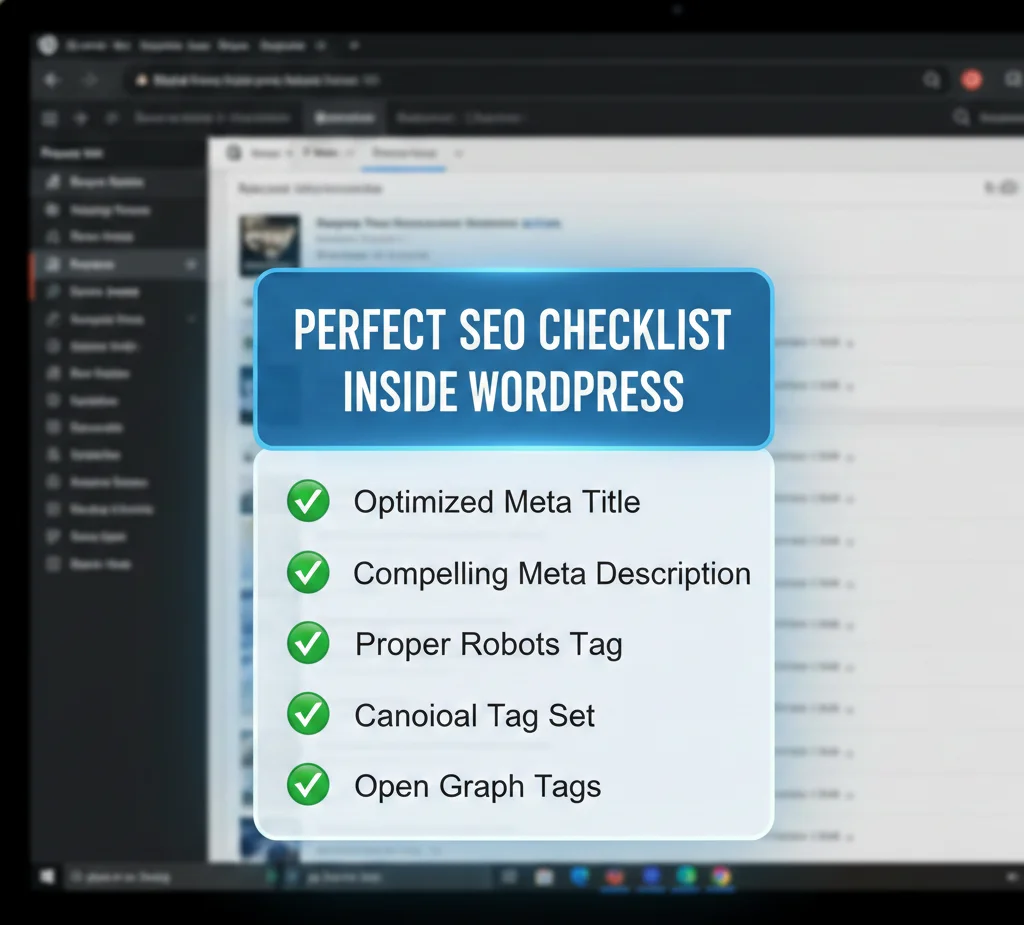
Meta Description: 150–160 Characters
Think of your meta description as your organic ad copy. It doesn’t affect rankings directly, but it’s the primary driver of whether someone clicks your result or a competitor’s. Every post or page on your WordPress website should have a unique, handwritten meta description.
Include your keyword naturally, open with the benefit to the reader, and close with an action-oriented phrase. A description and keywords combination that’s clearly relevant to the searcher’s query also reduces the chance that Google will override it with an auto-generated snippet.
Avoid Duplicate Meta Tags
Every page on your WordPress site must have a unique title and description. Duplicate meta tags across pages and posts are one of the most common issues found in WordPress SEO audits. The dynamic method in Method 1 prevents this automatically by pulling content from each post’s individual title and excerpt. If you use Method 2 (static header.php), you create duplicates by design.
Don’t Use Plugins and Manual Methods at the Same Time
If you manually add meta tags to your WordPress site, disable any active SEO plugins that output their own tags. Running a plugin like Yoast or Rank Math alongside manual code creates duplicate title and description tags in your <head>, which produces conflicting signals for crawlers and causes unpredictable results in Google Search Console. When you add meta tags in WordPress without a plugin, go fully plugin-free for those specific tags.
How to Verify Your Meta Tags Are Working
After adding meta tags to your WordPress site using any of the methods above, always verify they’re actually outputting correctly before considering the job done.
View Page Source: Open your site in a browser, right-click, and select “View Page Source” (or press Ctrl + U). Search the source for <meta name="description" to confirm your tags are present in the <head> section. This is the fastest verification method.
Google Search Console: Use the URL Inspection tool to see what Google is reading from each page. This shows the title and description Google is actually using in search results, which may differ from what you’ve set if Google determines your tags aren’t sufficiently relevant to the page content.
Facebook Sharing Debugger: Go to developers.facebook.com/tools/debug and paste any URL from your WordPress site to test your Open Graph tags. It shows exactly what title, description, and image Facebook will display when that URL is shared.
Screaming Frog SEO Spider: The free version crawls up to 500 URLs and exports all meta titles, meta descriptions, character lengths, and duplicate flags. This is the most efficient way to audit meta tags across a large WordPress website at once.
Common Problems and How to Fix Them
| Problem | Likely Cause | Fix |
|---|---|---|
| Meta tags not appearing in page source | Hook not firing or wrong file saved | Add priority 1: add_action('wp_head', 'fn_name', 1) |
Duplicate meta tags in <head> | SEO plugin still active alongside manual code | Deactivate the SEO plugin or remove manual code — never run both |
| Theme update erased your meta tag code | Edits were in the parent theme | Move all code to a child theme’s functions.php file |
| Meta description pulling wrong content | No excerpt set on the post | Add a manual excerpt to the post or page in the WordPress backend |
| WordPress homepage not showing updated meta | Caching layer serving old version | Clear your cache plugin and server cache — see our WordPress homepage not updating guide |
| Meta description overridden by Google | Description doesn’t match page content | Rewrite the description to better reflect what’s within the content |
| Fatal error after editing functions.php | PHP syntax error in code | Restore previous file via FTP — see our critical error fix guide |
| Open Graph image not showing on Facebook | Image below minimum size | Use 1200×630px minimum; test with Facebook Sharing Debugger |
Which Method Is Right for Your WordPress Site?
| Your Situation | Best Method |
|---|---|
| Simple static site with 1–5 pages | Method 2 — header.php file |
| Blog, news site, or content-heavy WordPress site | Method 1 — functions.php with wp_head |
| Non-developer who doesn’t want to touch theme files | Method 3 — WPCode plugin |
| Agency building WordPress sites for clients | Method 4 — Custom meta box |
| Need sitemaps, schema, and breadcrumbs too | Use a dedicated SEO plugin (Rank Math recommended) |
Frequently Asked Questions
Does Google use the meta keyword tag as a ranking factor in 2026?
No. Google officially confirmed in 2009 that it does not use the keywords meta tag in web search ranking. According to Google Search Central, this has not changed. Bing holds the same position. Adding meta keywords in every post on your WordPress website today will have zero effect on your search rankings. Spend your time optimizing the meta title and meta description instead. Those are the meta tags that actually influence how your WordPress site appears in search engine results and how often users click through.
What is the difference between a meta title and a page title in WordPress?
The page title in WordPress is the H1 heading that appears within the content visible to users. The meta title also called the SEO title, is the HTML <title> tag that appears in browser tabs and as the clickable headline in search engine results. They don’t have to be identical. The SEO title should be optimized for both keywords and click-through rate, while the H1 can be more conversational. Without an SEO plugin or the custom meta box from Method 4, WordPress uses the post title for both, giving you no way to control them independently.
Can I add a different meta description to every post or page without a plugin?
Yes, and you should. Use either Method 1 (dynamic functions.php with excerpt support) or Method 4 (custom meta box) from this guide. The custom meta box approach gives you the cleanest workflow: editors write and save the meta description directly inside the WordPress backend for each individual post or page, exactly as they would with Yoast or Rank Math. The excerpt-based dynamic method is more automated but gives you less per-post control unless every post has a manually written excerpt.
Will manually adding meta tags conflict with my WordPress theme’s existing output?
It can. Many modern WordPress themes and page builders output their own title tags or limited meta tags. Before adding any code, open your page source and check what your theme is already generating. If you find existing <meta name="description"> or <title> tags, either remove the theme’s output using remove_action, or ensure your manual code isn’t duplicating what’s already there. Duplicate tags won’t break your site but they create inconsistent signals for search engines and make SEO auditing harder.
Is the functions.php method safe to use on a live WordPress site?
It is safe when done correctly, but one PHP syntax error will cause a fatal error on your site. Always use a child theme. Never edit the parent theme’s functions.php file. Test changes on a staging environment before pushing to production. Keep a recent backup before making any edits. If you do cause an error and get locked out of your WordPress dashboard, you can recover by accessing functions.php via FTP and reverting the change. Our guide on fixing a critical error in WordPress without developer help covers the exact steps.
Should I add meta tags manually or use a plugin like Yoast or Rank Math?
It depends on your needs and technical level. Manually adding meta tags to your WordPress website without plugin dependencies is the better choice for developers who want a lean, fast setup or agencies building client sites without relying on third-party plugins. A plugin like Rank Math or Yoast is the better choice for non-developers, content teams managing multiple pages and posts, or any site that also needs XML sitemaps, structured data, breadcrumbs, and redirect management, features that aren’t practical to build manually. Both approaches produce the same core SEO output. The right choice depends on how much you need beyond the meta tags themselves.
How do I stop Google from rewriting my meta descriptions?
Google rewrites meta descriptions when it determines that your provided description isn’t a good match for the search query that triggered the result. The best prevention is writing descriptions that accurately and specifically reflect what’s within the content of each page, match the likely search intent of the user, and avoid being too generic or too keyword-heavy. Descriptions under 50 characters, copied verbatim from page content, or clearly written for search engines rather than users are the most commonly overridden. There is no technical fix, this is purely a content quality issue.