
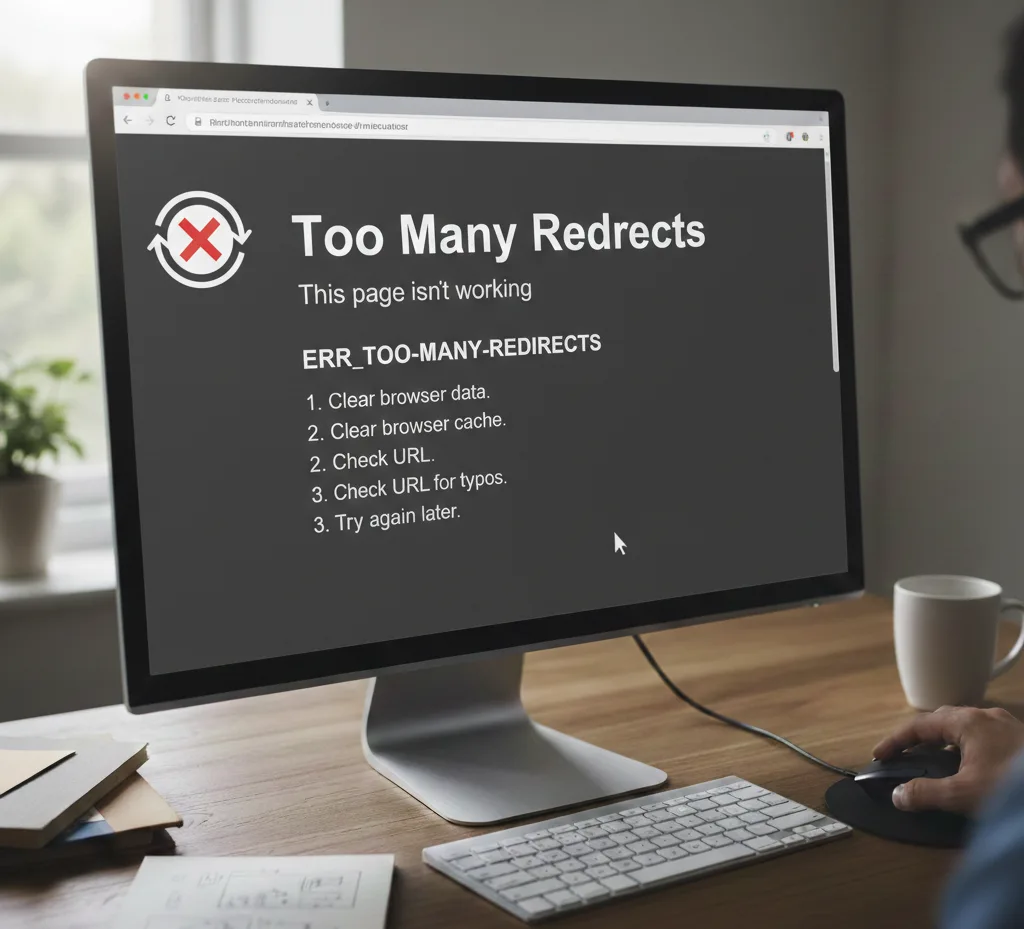
The “too many redirects” error means your browser got trapped in an infinite redirect loop where the website keeps sending it between URLs without ever loading the actual page. This happens when your site is stuck redirecting from one URL to another repeatedly, typically between HTTP and HTTPS versions or with conflicting redirect rules.
When Chrome, Firefox, or Safari says “too many redirects,” it’s protecting you from an endless cycle that would otherwise crash your browser. The error message appears as “ERR_TOO_MANY_REDIRECTS” in Google Chrome, “The page isn’t redirecting properly” in Firefox, or “Safari can’t open the page because too many redirects occurred” in Safari.
What Causes the Too Many Redirects Error?
A redirect loop happens when your web server creates a circular redirect path that never reaches a final destination. Understanding what triggers this redirection error is the first step to troubleshooting effectively.
Common scenarios that create infinite redirect loops:
The most frequent cause involves SSL certificate configuration issues. When you have an SSL certificate installed with your WordPress host but your site settings don’t match, requests to your hosting server are sent over HTTP while the server expects HTTPS. This mismatch creates a redirect in place from HTTP to HTTPS that never completes.
Cloudflare and other reverse-proxy services such as Cloudflare can trigger the error when their SSL settings conflict with your origin server. If Cloudflare’s Flexible SSL option is enabled but you already have an SSL certificate on your host server, both systems try to handle SSL differently, causing the redirection loop.
Real-world warning: I’ve seen businesses lose thousands in revenue during the hours it takes to identify a redirect loop caused by a single misconfigured WordPress plugin. The error occurs suddenly, blocks access to the admin area, and creates panic because the entire site becomes inaccessible.
Cached redirect instructions in your browser’s cache or server-side cache can make the err_too_many_redirects error persist even after you fix the underlying issue. Your browser keeps following outdated redirect instructions stored locally.
How Browser Cache Affects Redirect Errors
When you visit a website, your browser stores redirect instructions to load pages faster on future visits. If these cached redirects contain faulty data, you’ll see the “redirected you too many times” message even when the website is working correctly for others.
Why clearing cache is essential: Chrome, Firefox, and Safari each store redirect paths differently, but all can preserve broken redirect loops. The browser’s cache remembers “when you visit URL A, go to URL B,” and if that instruction creates a loop, it will repeat that loop every time.
Your browser if necessary will follow up to 20 redirects before stopping and showing the error. This redirect limit on Chrome (and most browsers) prevents infinite loops from consuming resources, but it also means legitimate multi-step redirects can sometimes fail.
Testing tip: Always test in an incognito or private browsing window first. If the site works there, you know cached data is causing the issue rather than actual server configuration problems.
Fix 1: Clear Browser Cache and Cookies (All Browsers)
The easiest and fastest solution is to clear the cache on your browser. This removes stored redirect instructions that might be causing the loop.
For Google Chrome:
- Press Ctrl+Shift+Delete (Windows) or Cmd+Shift+Delete (Mac)
- Select “All time” from the time range dropdown
- Check both “Cookies and other site data” and “Cached images and files”
- Click “Clear data”
- Restart Chrome and try accessing the site
For Firefox:
- Press Ctrl+Shift+Delete
- Select “Everything” from time range
- Check “Cookies” and “Cache”
- Click “Clear Now”
For Safari:
- Press Cmd+Option+E to empty cache
- Go to Safari > Clear History
- Select “all history” and confirm
After clearing browser cache, the redirect error should disappear if outdated cached redirects were the problem. If the error persists, the issue is server-side rather than browser-side.
Fix 2: Check and Correct WordPress URL Settings
WordPress sites frequently show “too many redirects” when the WordPress Address (URL) and Site Address (URL) settings don’t match your actual site configuration or contain inconsistent HTTP/HTTPS protocols.
To fix the error through WordPress dashboard:
- Log into WordPress admin (if accessible)
- Go to Settings > General
- Verify both URLs use the same protocol (both HTTP or both HTTPS)
- Ensure URLs don’t have trailing slashes or typos
- Save changes
If you can’t access the admin area, modify the wp-config.php file directly via FTP or your hosting provider’s file manager:
php
define('WP_HOME','https://yoursite.com');
define('WP_SITEURL','https://yoursite.com');
```

Replace "yoursite.com" with your actual domain and ensure you're using HTTPS if you have an SSL certificate. This direct database-level fix bypasses the redirect loop blocking admin access.

**Critical mistake to avoid:** Never mix HTTP and HTTPS in these settings. If your site uses HTTPS, both values must start with "https://". Mixing protocols creates the exact redirect path that causes this error.

## Fix 3: Resolve SSL Certificate Configuration Issues

SSL-related redirect loops are extremely common, especially when transitioning from HTTP to HTTPS or when using services like Cloudflare. The error message appears because requests bounce between encrypted and unencrypted connections.

**For Cloudflare users experiencing redirect loops:**

If you're using Cloudflare and already have an SSL certificate installed on your WordPress host, the Flexible SSL option creates conflicts. Here's how to resolve the issue:

1. Log into your Cloudflare dashboard
2. Select your domain
3. Go to SSL/TLS settings
4. Change from "Flexible" to "Full" or "Full (Strict)"
5. Wait 5 minutes for changes to propagate

The Flexible SSL option tells Cloudflare to use HTTPS between visitors and Cloudflare, but HTTP between Cloudflare and your origin server. If your host server already encrypts traffic, this creates the redirect in place from HTTP to HTTPS at both ends, causing the infinite redirect loop.

**For general SSL certificate issues:**

Verify your SSL certificate is properly installed and active. Contact your web host support team if you're unsure. Many hosting providers in the USA, UK, and Australia offer free SSL through Let's Encrypt, but installation must be completed correctly.

If you host uses Nginx (rather than Apache), SSL configuration happens in the server config file rather than .htaccess. You'll need SSH access or must contact your web host to check these settings.

## Fix 4: Disable WordPress Plugins Causing Redirects

WordPress plugins, especially security plugins, caching plugins, and SEO plugins, frequently create redirect rules that conflict with each other or with your server configuration. When multiple plugins try to manage redirects, the site is stuck in a redirection loop.

**Common plugin conflicts:**
- SSL/HTTPS enforcement plugins when SSL is also configured at server level
- Caching plugins with redirect caching enabled
- Security plugins with URL normalization rules
- SEO plugins managing canonical redirects

**To disable plugins without admin access:**

1. Connect via FTP or your hosting provider's file manager
2. Navigate to wp-content/plugins
3. Rename the plugins folder to "plugins_disabled"
4. Try accessing your site
5. If it works, rename back to "plugins" and disable plugins one by one through the dashboard

This method helps you troubleshoot which specific plugin is causing the error occurs situation. Once identified, you can either reconfigure that plugin's settings or find an alternative.

**Pro insight:** I always recommend keeping detailed notes of which plugin combinations create redirect issues. Many businesses use the same core plugins, and knowing which ones conflict saves hours during future troubleshooting.

## Fix 5: Check and Fix .htaccess Redirect Rules

The .htaccess file on Apache servers (most common in shared hosting) contains redirect rules that can create loops when misconfigured. Recently added redirect rules often contain faulty data or conflict with existing rules.

**To fix redirect errors in .htaccess:**

1. Access your site via FTP
2. Download a backup copy of .htaccess
3. Open the file in a text editor
4. Look for redirect rules (lines starting with "Redirect" or "RewriteRule")
5. Check for conflicting HTTPS redirects
6. Delete suspicious rules or replace the entire file with a default WordPress .htaccess

**Standard WordPress .htaccess without redirects:**
```
# BEGIN WordPress
<IfModule mod_rewrite.c>
RewriteEngine On
RewriteBase /
RewriteRule ^index\.php$ - [L]
RewriteCond %{REQUEST_FILENAME} !-f
RewriteCond %{REQUEST_FILENAME} !-d
RewriteRule . /index.php [L]
</IfModule>
# END WordPress
```

If you need HTTPS redirection, add this at the top (but only if you're certain your SSL certificate is installed and working):
```
RewriteEngine On
RewriteCond %{HTTPS} off
RewriteRule ^(.*)$ https://%{HTTP_HOST}%{REQUEST_URI} [L,R=301]
Warning: Never add multiple HTTPS redirect rules. Having redirects at both the .htaccess level and plugin level creates the exact infinite redirect loop you’re trying to fix.
Fix 6: Clear Server-Side and DNS Cache
Beyond your browser, your hosting server and DNS provider may cache redirect instructions. Even after fixing the underlying issue, cached redirects can make the error message persist.
Clear hosting server cache:
- Access your hosting control panel
- Find “Cache Manager” or similar tool
- Clear all cache types (object cache, page cache, CDN cache)
- Wait 5-10 minutes for changes to propagate
Clear DNS records cache:
DNS changes can take 24-48 hours to fully propagate, but you can speed this up:
- Flush your local DNS (run
ipconfig /flushdnsin Windows Command Prompt orsudo killall -HUP mDNSResponderon Mac) - Clear DNS cache at your DNS provider (if using Cloudflare, purge everything)
- Consider temporarily changing your computer’s DNS to Google’s (8.8.8.8) to bypass cached records
For third-party proxy services beyond Cloudflare, ensure their cache is fully cleared. Services like Sucuri, Fastly, or KeyCDN can all cache redirect paths.
Fix 7: Verify Correct Hostname and URL Configuration
Sometimes the err_too_many_redirects error happens because your website URL settings don’t match your actual hostname or DNS records. This is particularly common after site migrations or when using subdomains.
Check for URL consistency:
- Verify your DNS records point to the correct server IP
- Ensure your hosting provider has the correct domain configured
- Confirm SSL certificate covers your specific hostname (including www vs non-www)
- Check that reverse proxies are using the correct origin hostname
Contact your web host and have them check server-level domain configuration if you’ve verified everything else. Sometimes the hosting server’s configuration for your domain contains outdated or incorrect redirect instructions that override your .htaccess settings.
How to Get Rid of Redirects on Chrome Permanently
To prevent Chrome from caching problematic redirects in the future, adjust your browsing data settings:
- Go to Chrome Settings
- Navigate to Privacy and Security
- Select “Cookies and other site data”
- Enable “Clear cookies and site data when you close all windows”
- Under “Sites that can never use cookies,” add problematic domains temporarily while troubleshooting
This prevents Chrome from storing redirect paths that might become outdated, though it also means you’ll need to log into sites more frequently.
When SEO Is Affected by Redirect Loops
The too many redirects error directly damages your SEO because search engines can’t crawl pages trapped in redirect loops. Google will eventually remove URLs from its index if they consistently return redirect errors rather than actual content.
SEO impact of redirect errors:
- Pages become unindexable
- Rankings drop for affected URLs
- Crawl budget is wasted on redirect loops
- User experience signals worsen (high bounce rate)
If you’re serious about maintaining search visibility, working with an SEO expert helps identify and prevent redirect issues before they impact rankings. Professional monitoring catches these problems early.
For businesses managing their own sites, implementing proper website performance monitoring helps detect redirect errors across your entire site structure. Catching a redirect loop affecting ten pages is much better than discovering it three months later after significant ranking losses.
Advanced Troubleshooting for Persistent Redirect Loops
If you’ve tried all standard fixes and the error persists, consider these advanced scenarios:
Server-level redirects: If your host uses Nginx, redirect rules are configured in the server config file rather than .htaccess. You’ll need SSH access or hosting support to check these.
Load balancer issues: Enterprise hosting sometimes uses load balancers that add their own redirect layer. These can create loops separate from your application code.
CDN configuration: Content delivery networks sometimes cache redirect responses aggressively. Completely disable your CDN temporarily to test if it’s the source.
Multi-site installations: WordPress multisite networks have additional URL configuration layers that can create complex redirect scenarios.
For complex hosting environments common with established businesses, investing in affordable web design and development support ensures you have expert help when redirect issues extend beyond standard fixes.
Preventing Future Redirect Errors
Best practices to avoid redirect loops:
- Test SSL configuration thoroughly before going live
- Use only one method for HTTPS redirection (server-level OR plugin, never both)
- Document all redirect rules in .htaccess with comments explaining their purpose
- Test in incognito mode after making any redirect changes
- Keep WordPress, plugins, and themes updated
- Regularly audit and clean up old redirect rules
When you make changes that involve redirects, like enabling SSL, changing domain structure, or installing security plugins;test immediately in multiple browsers. Catching a redirect loop within minutes is easy to fix; discovering it days later after customers have been blocked is devastating.
Final Thoughts on Fixing Redirect Errors
The “too many redirects” error is usually easy to fix once you identify whether it’s browser cache, SSL configuration, plugin conflicts, or .htaccess rules causing the issue. Start with the simplest solution (clear cache) and work toward more complex fixes.
Most importantly, when you resolve the issue, document what caused it and how you fixed it. Redirect loops often recur when team members make similar configuration changes months later without knowing about previous problems. A simple troubleshooting log saves hours of repeated debugging and helps maintain the privacy and security of your site without accidentally creating new redirect paths.